Prepare property photos before turning them into video
Improve a photo, remove a selected movable item, or imagine a layout. Compare the result, retain the original, and choose the version to use in video.
Free to get started · No credit card required · No commitment
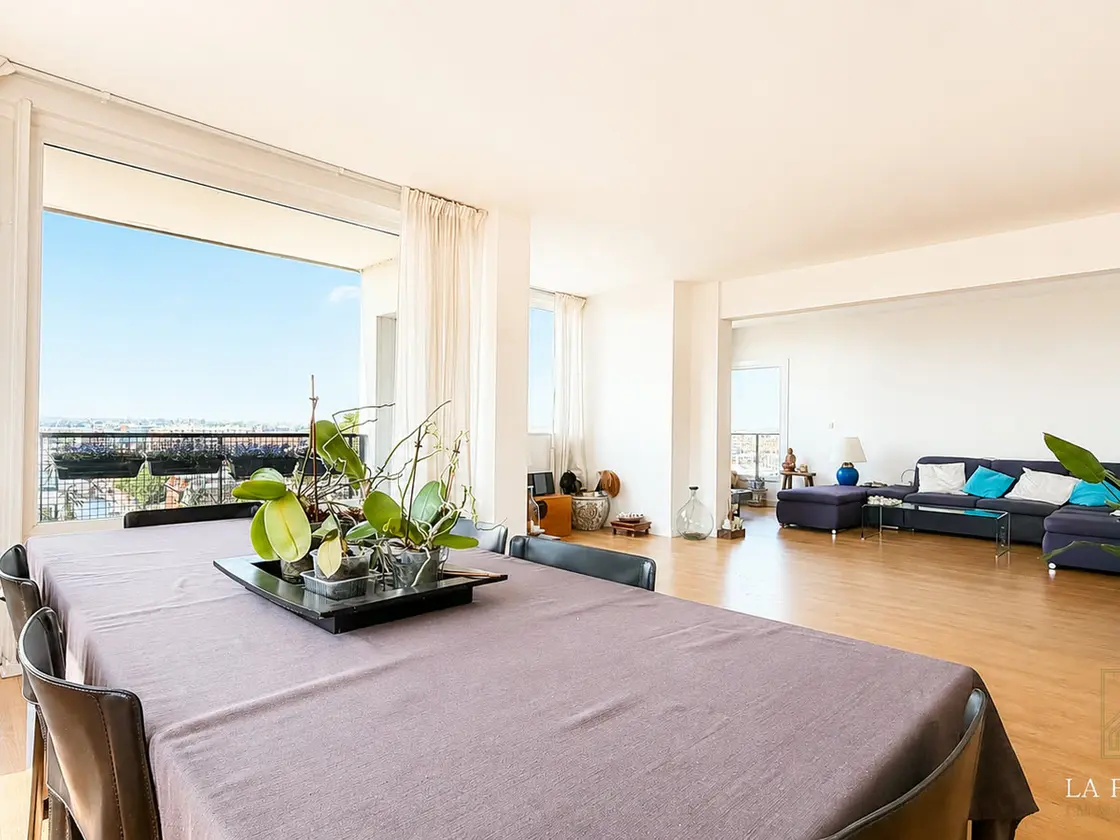
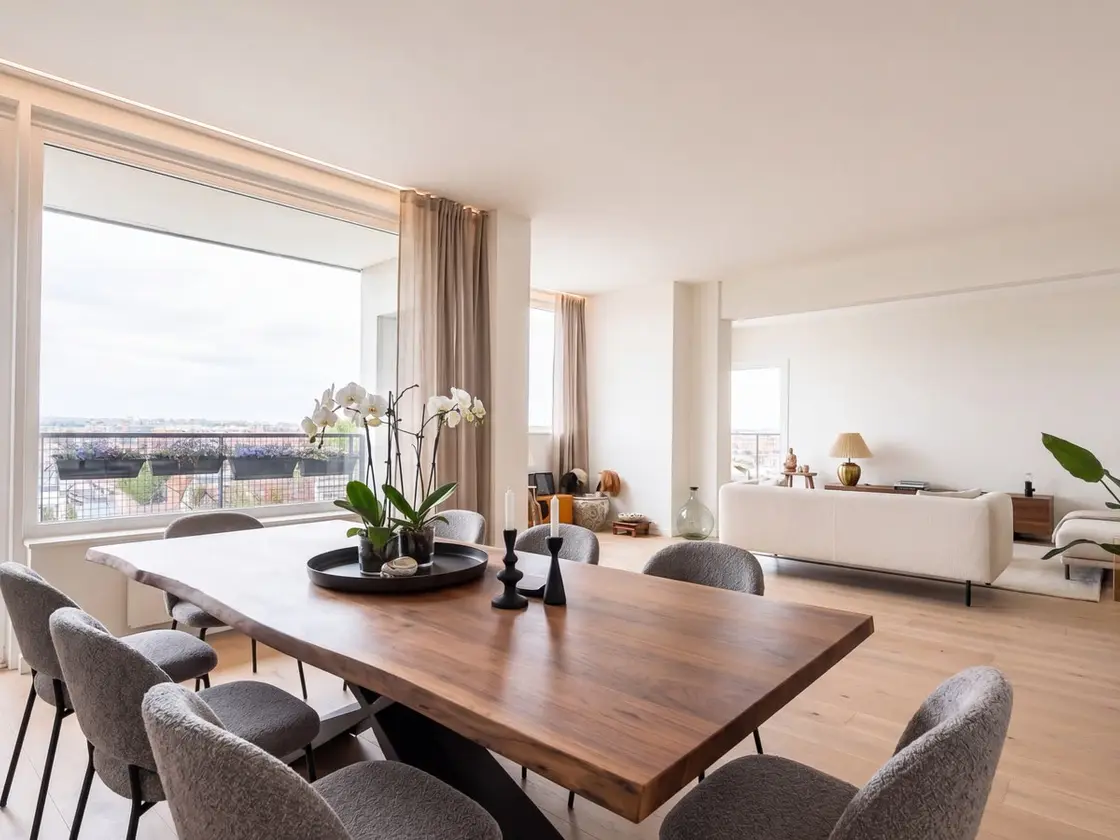
Four ways to prepare a photo
Improve the photo
Adjust light, colours, and sharpness without trying to transform the property.
Remove an item
Select a movable or temporary item to remove. Never hide a defect, fixed installation, or important feature.
Imagine the layout
Virtually furnish an empty room or imagine another style for a furnished one.
Describe another change
Describe the precise change you want. The rest of the photo is preserved as much as possible.
From the chosen photo to the video scene.
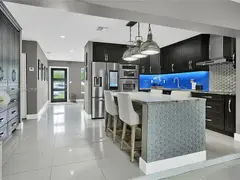
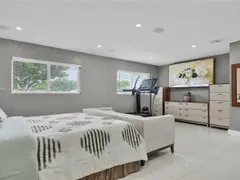
The original never disappears.
Every successful edit creates a version alongside the previous ones. You compare before and after, choose the property's active version, and can return to the original at any time.
- 1
The original
Always available, never replaced by an edit.
- 2
The versions
Ready versions stay in the history. Layout visualizations are identified there as AI-generated.
- 3
The active version
The one used by default for the property. Another version can be selected for a specific scene.
A visualization should clarify, never mislead.
Keep the original, identify creative visualizations, and review every result before use. Reject any version that moves, removes, resizes, or invents an opening or fixed element, distorts volumes, changes the outside view, or hides a material defect. Colours and finishes may be reimagined inside a visualization and must be presented as such.
Always
Keep the original and identify creative visualizations in their publishing context.
Check
That geometry, volumes, openings, fixed elements, and the outside view are intact.
Reject
Any version that moves, removes, resizes, or invents a fixed element, or hides a defect.
Frequently asked questions
Turn your next listing into a video.
Import a listing, choose a style, and review everything before rendering.
Free to get started · No credit card required · No commitment